Barcode Label Printer - Brother QL 820NWB
Updated March 3, 2025
Brother QL-820NWB
Add to any Station Duo, Station Solo, Mini, or Flex via. USB, WIFI, or Ethernet connection (WIFI only with Flex or Pocket). Barcode labels are printed through Easy Labels app (Install via. App Market).
Barcode Label Size Options:
DK-2214 (0.47" x 3.4" or 12 mm x 86 mm)
DK-1221 (0.9" x 0.9" or 23 mm x 23 mm)
DK-1218 (0.94" diameter or 24mm diameter) Round
DK-1204 (0.66" x 2.1" or 17 mm x 54 mm)
DK-3235 (1.1" x 2.1" or 29 mm x 54 mm) Removable
DK-N5224 (1.1" x 2.1" or 29 mm x 54 mm) Non-Adhesive
DK-1209 (1.1" x 2.4" or 29 mm x 62 mm)
DK-1201 (1.1" x 3.5" or 29 mm x 90 mm)
DK-1208 (1.4" x 3.5" or 38 mm x 90 mm)
DK-1202 (2.4" x 3.9" or 62 mm x 100 mm)
DK-2113 (2.4" x 50' or 62mm x 15.2m) Clear Film Tape
DK-2210 (1.1" or 29mm) Tape
DK-2205 (2.4" x 50' or 62mm x 15.2m) Tape
DK-2211 (1.1" or 29mm) White Film Tape
DK-2212 (2.4" x 50' or 62mm x 15.2m) White Film Tape
DK-2251 (2.4" x 100' or 62mm x 30.4m) Black/Red on White Tape
DK-4205 (2.4" x 100' or 62mm x 30.4m) Removable
DK-2606 (2.4" x 50' or 62mm x 15.2m) Yellow Film Tape
Connectivity Instructions:
- Plug up printer to power.
- Connect the printers USB cord to Station Duo, Solo, or Mini USB outlet. If using a flex or pocket, skip to step 3.
- Install Easy Labels app from App Market.
- Open Easy Labels app, go to Settings by clicking on the three stacked dots in the top right corner.
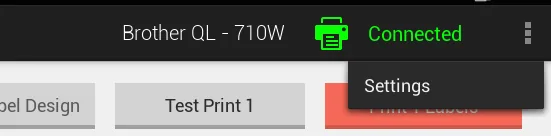
- If using a flex or pocket, check-mark Connect Printer to Clover by Wifi from Settings.

- Choose the correct Printer Model from Settings.
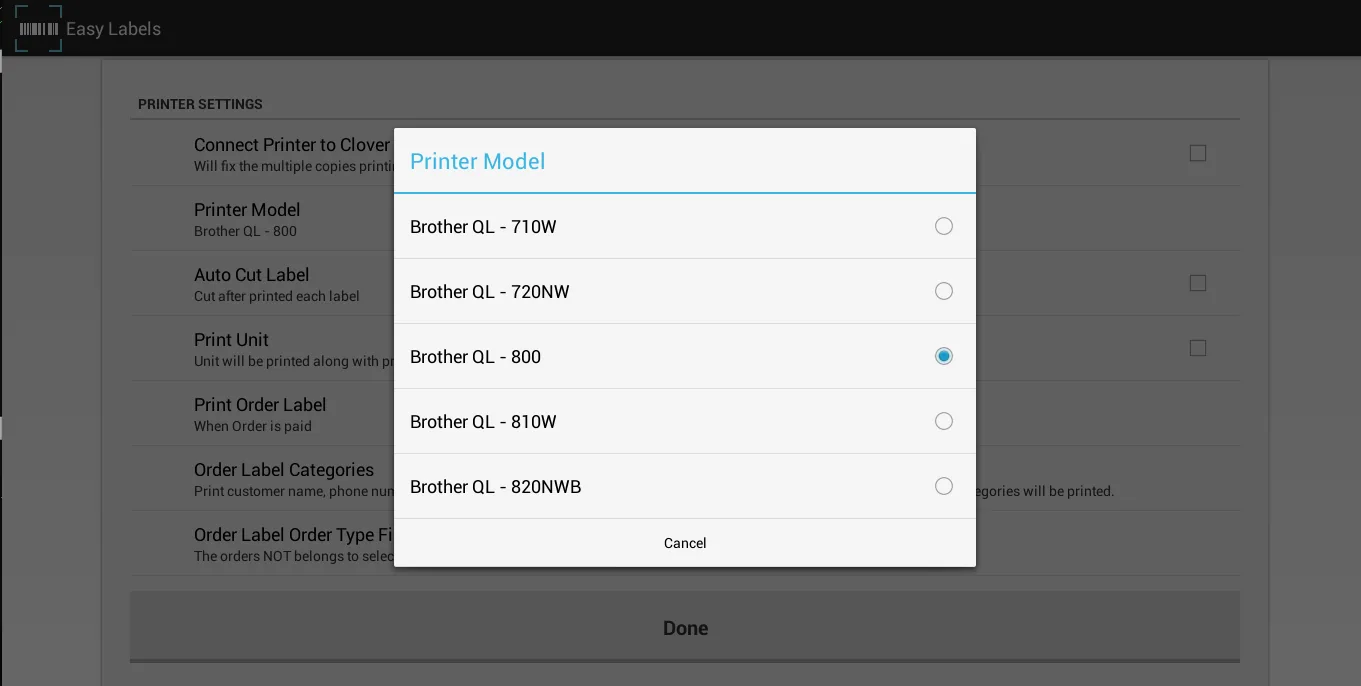
- Adjust additional Settings to merchants preference.
- Click Done.
- If you need additional help, go to Easy Labels Support.
Demo Video:
Was this helpful?
If you’re still stuck, call (818) 654-4449 or email Info@yanpayments.com. Mon–Fri, 9 AM – 5 PM.