KDS Setup
Updated May 9, 2024
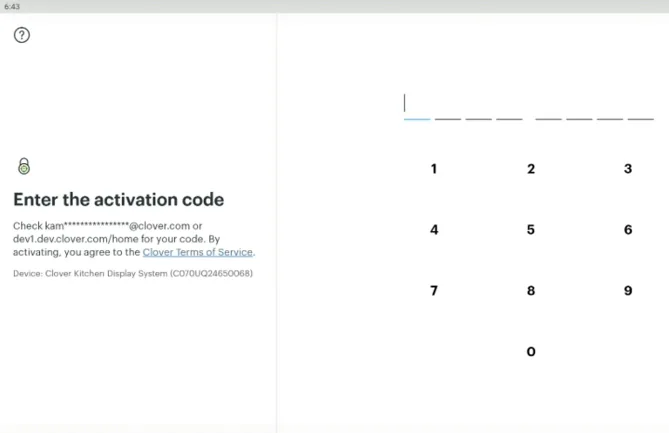
Clover KDS will follow a similar activation process to other Clover Devices.
Follow these steps:
1. Connect to internet (Ethernet and WiFi supported).
2. Enter activation code (pictured below).
3. Apps will install.
4. Confirm SaaS plan & agree to billing terms.
5. Customize KDS settings within app (pictured below).
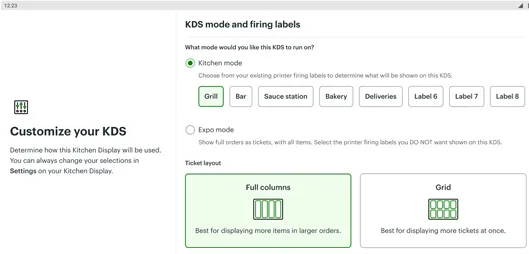
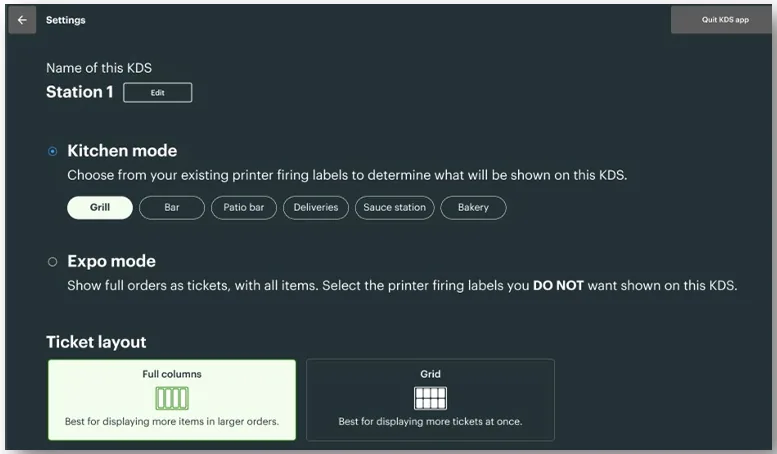
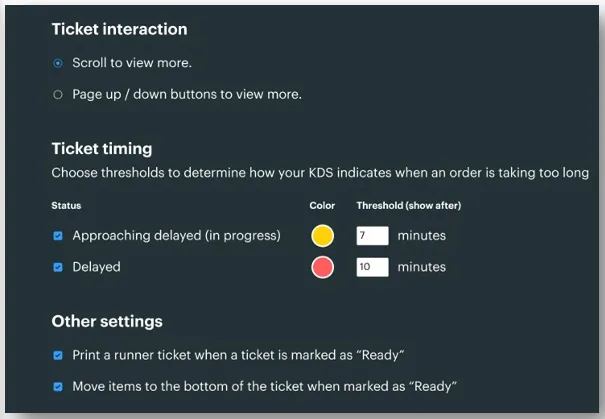
Customize Setting Options:
- Select the labels to appear on each KDS (similar to how kitchen printers function today).
- Support for full Columns for merchants w/ larger orders.
- Color Coding for ticket timing.
Was this helpful?
If you’re still stuck, call (818) 654-4449 or email Info@yanpayments.com. Mon–Fri, 9 AM – 5 PM.